
How to activate a session and receive messages
Start a session and retrieve OTP messages from your dashboard.
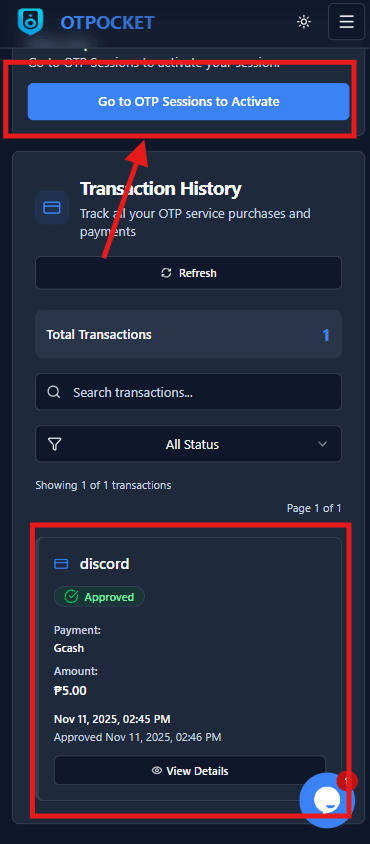
Step 1: After approval, go to OTP Session to activate
In the Transactions tab, wait for status to be Approved. Then navigate to the OTP Session page to activate your session.
Click to preview
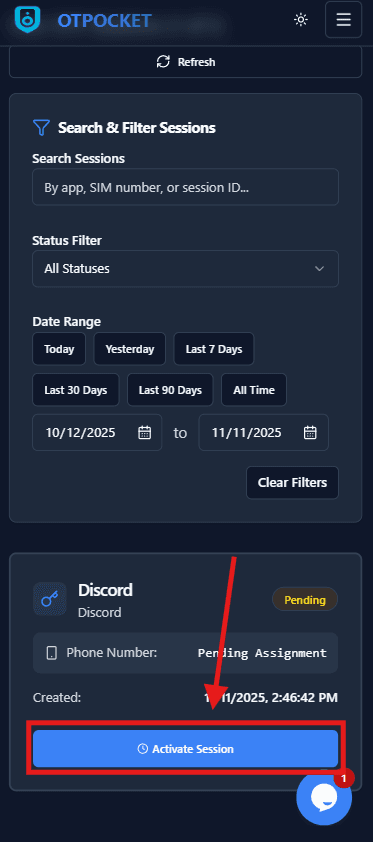
Step 2: Click Activate Session
Press the Activate Session button to start your private session and get a number assigned.
Click to preview
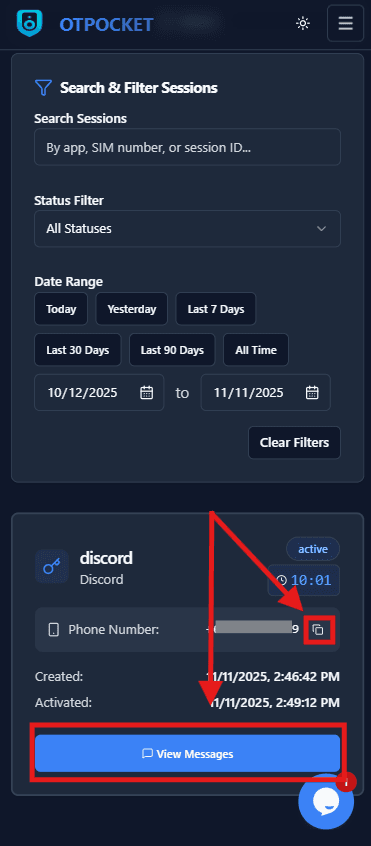
Step 3: Copy number and open View Messages
Use the copy button on the assigned phone number, then click View Messages to see incoming OTPs.
Click to preview
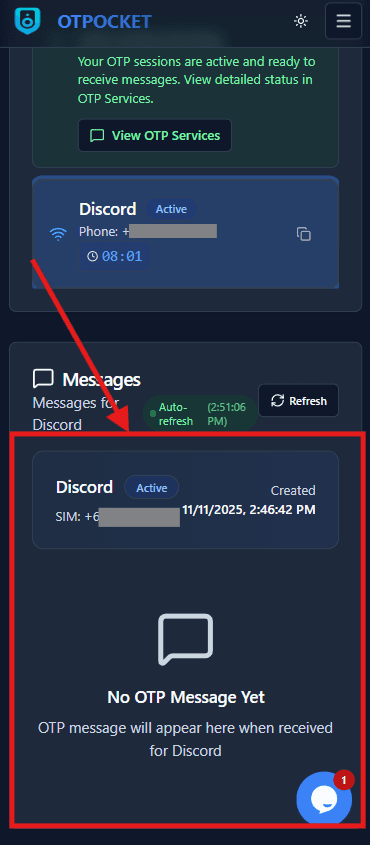
Step 4: Messages appear in the session message panel
Incoming OTP messages will display here in real time. Use the code in your target app to complete verification.
Click to preview